

A short, screenshot-led walk-through of the core SOAP2 loop end to end — pick a symbol, open an Options Analysis (OA) window, load a chain, build a model, and commit it to a Position — using an SPX Put Broken Wing Butterfly as the running example. It's a companion to the Getting Started section of the User Manual, with more screenshots and a bit more narrative.
Also available as a Word document: Initial Walk-through.docx (same content, downloadable for offline reading).
Related:
SOAP2 generally starts with the default symbol from the watchlist — here, SPX — preconfigured in Preferred Settings. On a fresh install, before any Preferred Settings exist, the default symbol is SPY.
This walk-through skips the General Settings screen (Alt-G): the defaults are enough to get started, and General Settings is covered separately in the User Manual's Settings section.
To switch to another symbol, use the symbol dropdown on the top toolstrip:
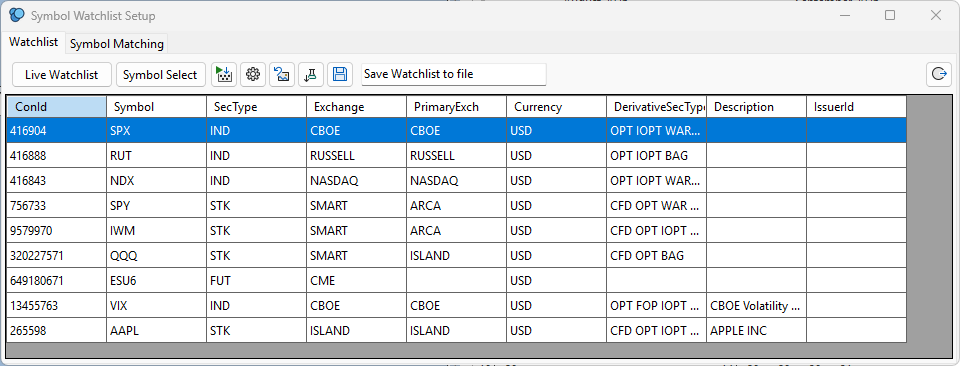
Before loading a chain, it's worth checking two things for the symbol you're about to trade:
Example Watchlist Setup grid:
Alternatively, once an OA is open, its Wheel button (top-left, blue background) opens Preferred Settings for that OA's current symbol directly — useful for a quick check without leaving the OA. Example, Preferred Settings for SPX:
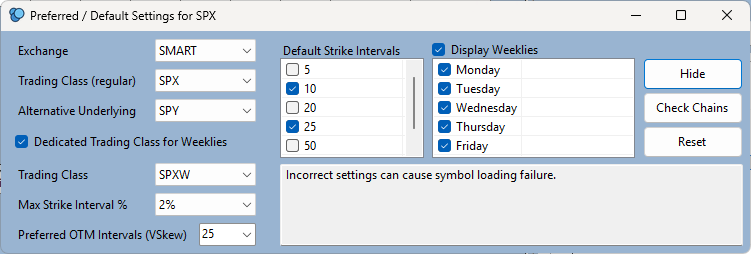
The left panel is generally preconfigured correctly out of the box. The two things worth reviewing are Default Strike Intervals and the Display Weeklies day list. Note that weekly expiries can also be toggled at the OA level, independently of this setting, with Ctrl-W.
With the symbol selected, open a new Options Analysis window (Shift+Click the Show Selected OA button on the main toolstrip — see the User Manual if this is your first OA). You should now see a new, blank OA for the current symbol:
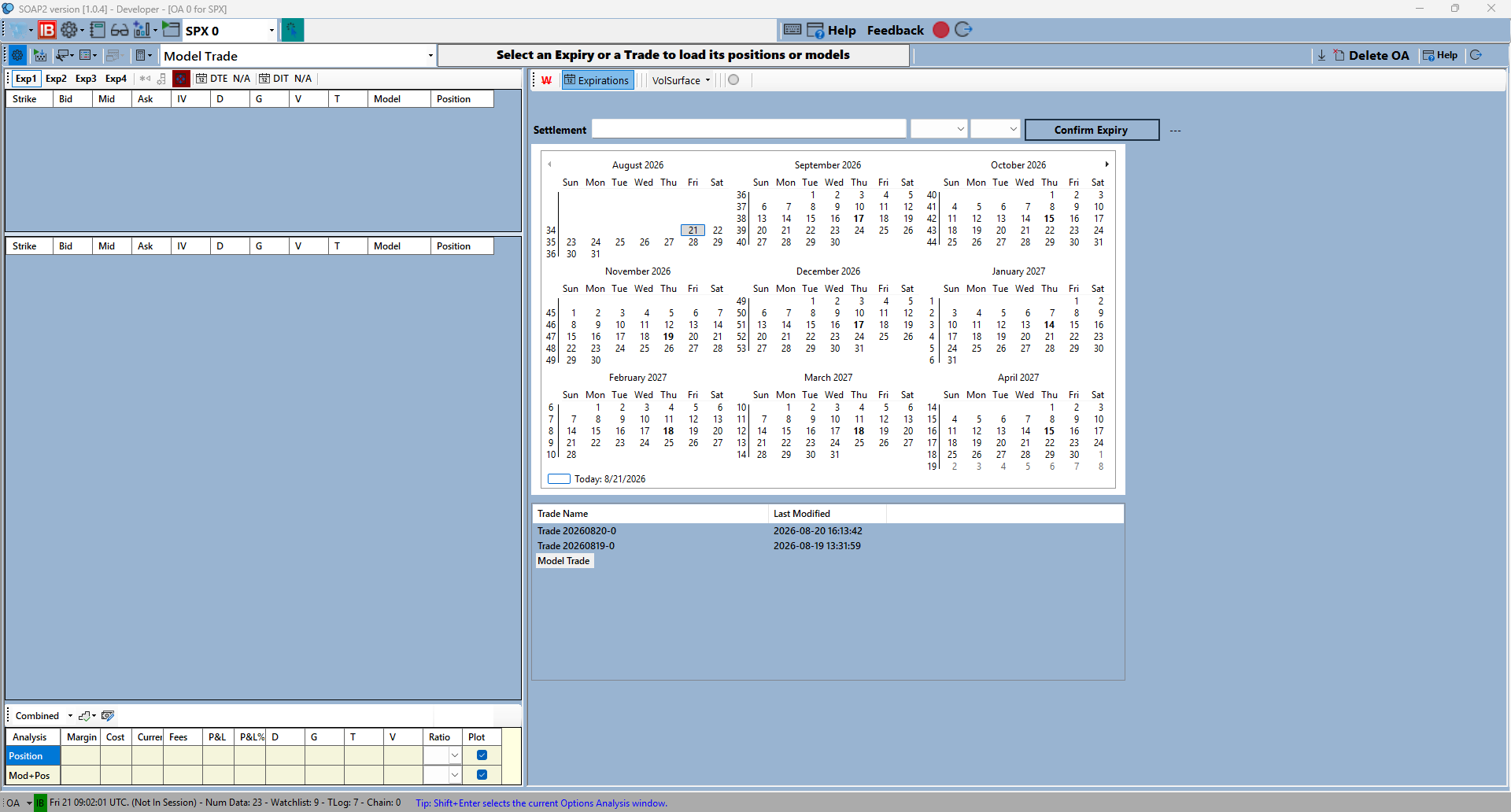
This is where you decide whether to include Weeklies or not (Ctrl-W, or the W icon), then select an expiry from the calendar and press Confirm Expiry (or Enter) to load that chain onto the grids. Defaults from Preferred Settings apply automatically, but can be overridden for this OA specifically — see the next section.
To override a Preferred Settings default just for this OA, press Alt-Down to reveal the top panel. In this example, the Minimum Strike Interval hadn't been selected yet:

It can be set here directly, or more quickly toggled with Ctrl-Down — in this instance, a 5-point strike interval for SPX. Once an expiry is confirmed, the OA looks like this (October monthly expiry in this example):
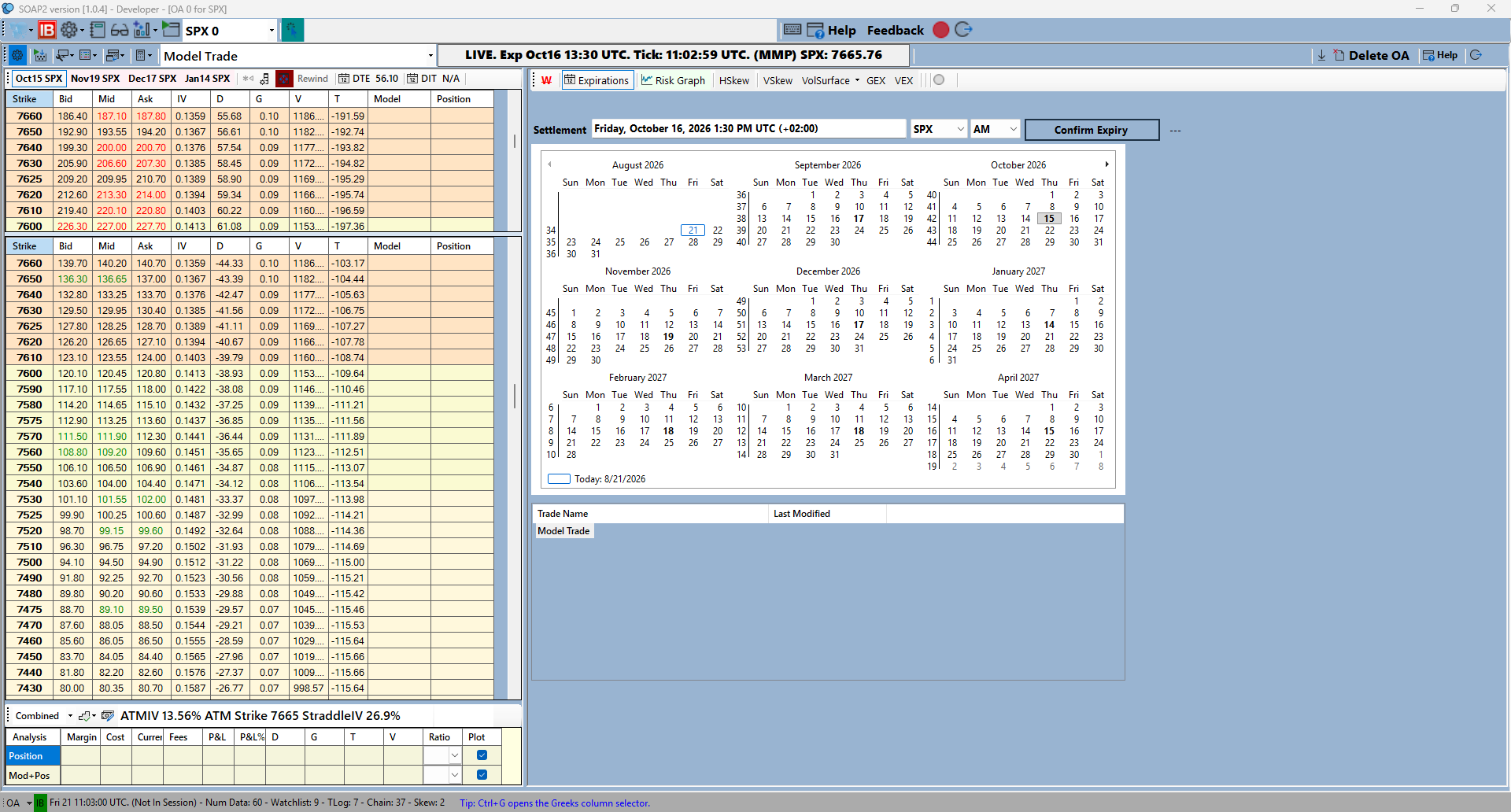
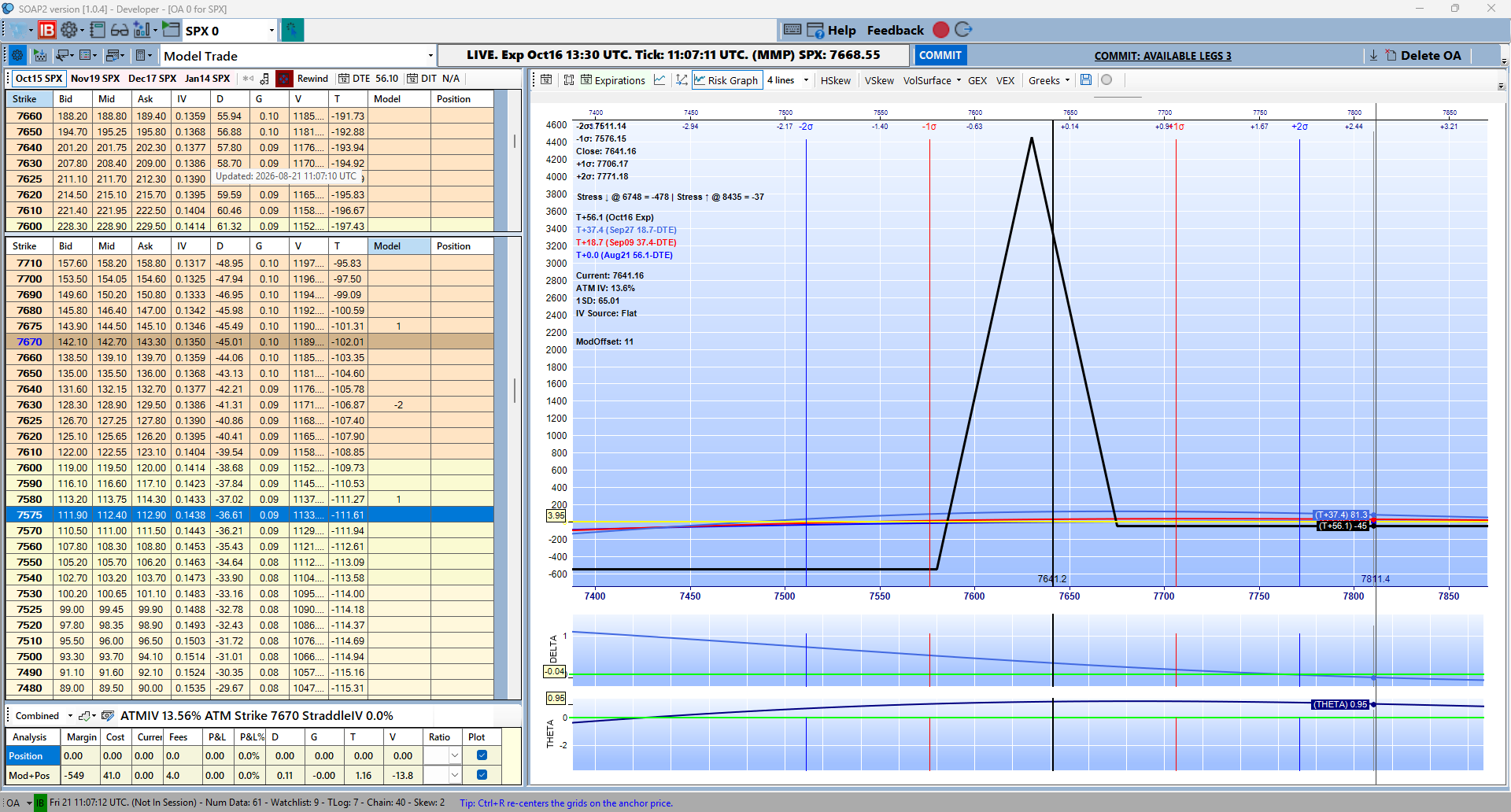
With the chain loaded, enter a model combo directly on the grids — in this instance, a Put Broken Wing Butterfly. The Risk Graph updates immediately as legs are entered:
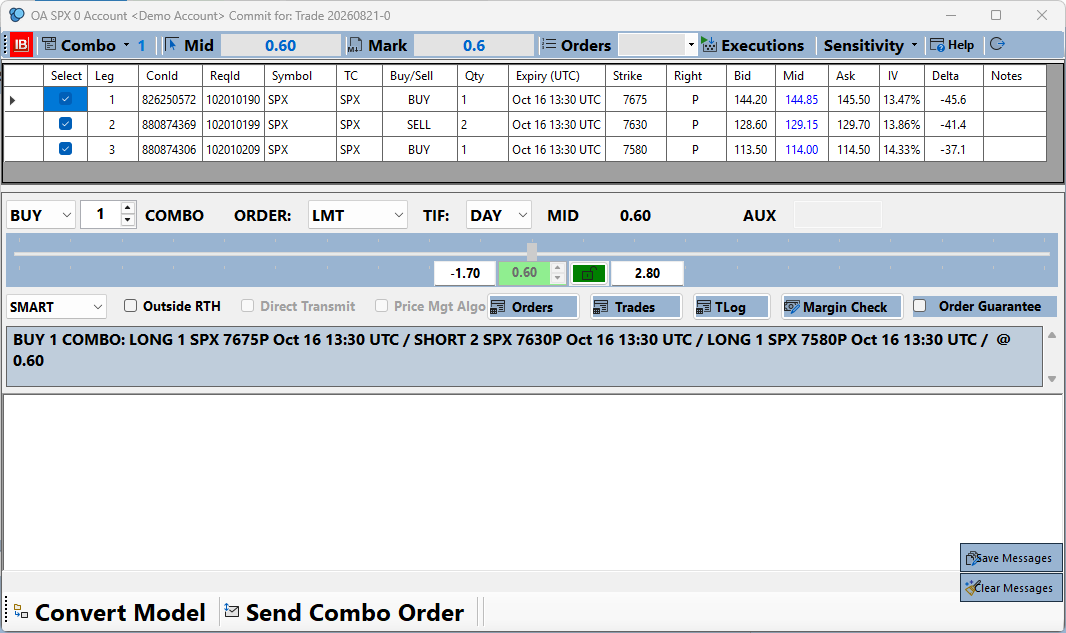
The next step is committing the model to a real Position. This example uses a straight Convert, which bypasses sending the order through TWS for review — the limit price can be locked, or sent through at Mid:
The former Model is now an actual Position (Trade):
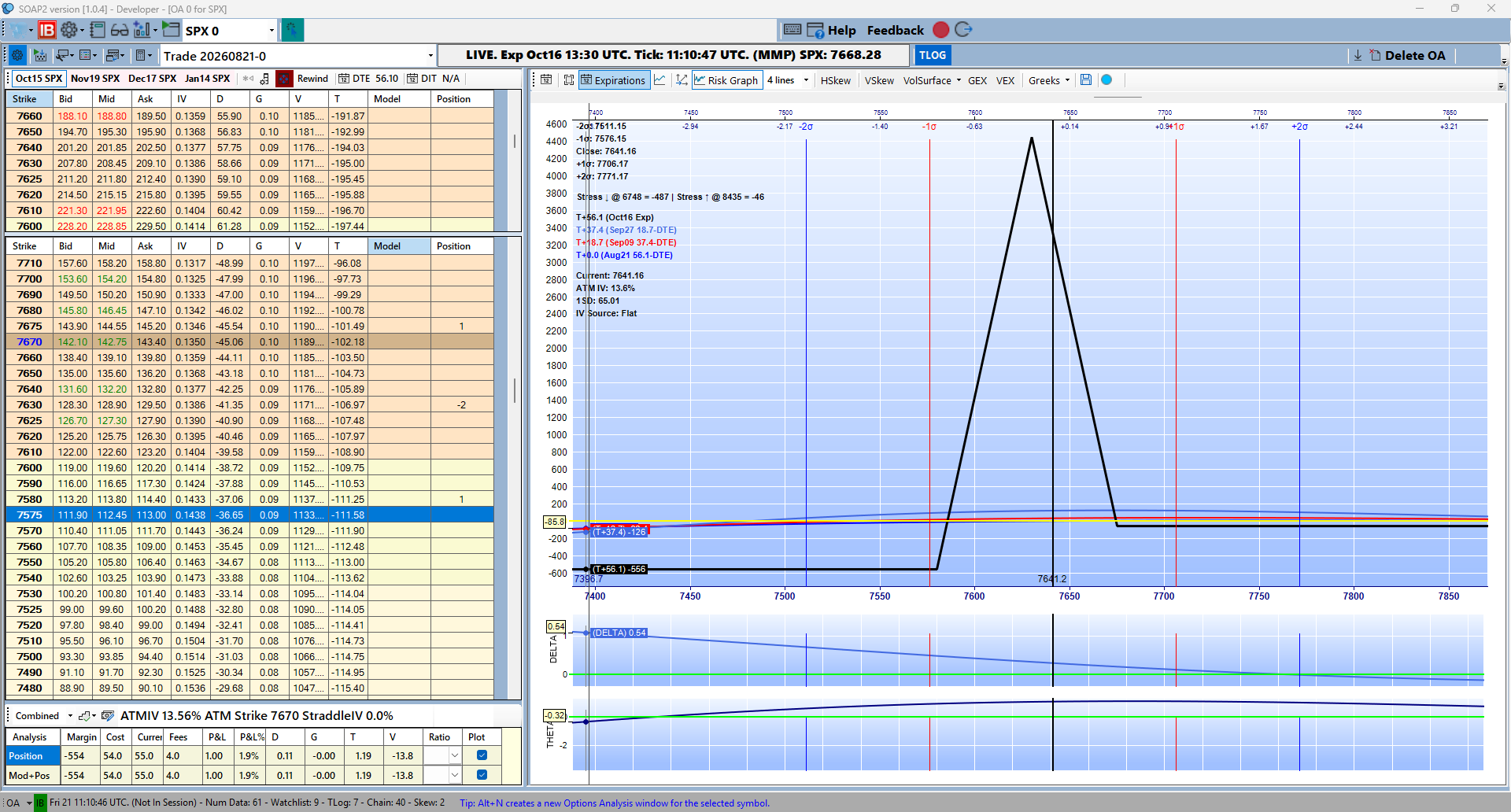
This walk-through was done entirely outside market hours. SOAP2 uses Interactive Brokers' Market Maker / Dealer information to model trades accurately even when the underlying (SPX here) isn't quoting at all — a feature most other platforms don't offer.
When no live or cached anchor price is available for a symbol, SOAP2 will prompt for a manual reference price instead of blocking you:
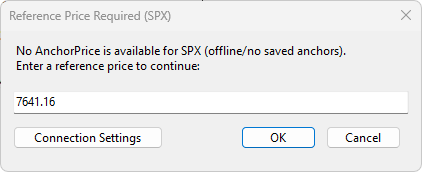
Enter a reasonable reference price (e.g. the last known close) and continue — the OA will use it as the anchor until live data resumes.
Note that this is generally a IB connection glitch. You may have to restart the TWS and SOAP.
Go back to the main help page: SOAP2 Help Guide