BETA: Trade Rules is new since the v1.1 release. The engine and levels are built and working, but it hasn't had the same length of real-world use as the rest of SOAP2 yet — treat its recommendations as a second opinion, verify against what you already track, and let us know if something looks wrong.
Editions: Trade Rules is part of the Regular edition and above (and the Free Trial). It is not available in the Free edition.
Trade Rules let you write down, once, how you want each trade to behave — how close to expiry you are willing to hold it, how much delta or vega it may carry, how far the short strikes must stay from the market, when to take a profit — and then let SOAP2 watch every trade against those rules for you. When a rule is broken SOAP2 tells you, and where you asked for it, recommends an action: Adjust, Roll, Reduce or Close. Everything else stays a plain Alert.
SOAP2 never places or changes an order because of a rule. A rule is a reminder with a recommendation; the decision, and the order, stay yours.
New to Trade Rules? Start with the Beginner’s Guide (your first trade with a ready-made template), then the Templates guide (every template, rule by rule). Trades made of several combos: Hybrid Trades. Word versions: Beginner, Templates, Advanced, Quick Start.
Related:
21 Alert, 14 Reduce, 7 Close) and press
Save.| What | Where |
|---|---|
| Rules editor | Trade List: right-click a trade → Trade rules..., or select it and press Alt+X; or click Rules... in an Options Analysis window, or press Alt+X there (real trades only, not the Model Trade) |
| Dashboard | Main menu → Trades → Trade rules dashboard (right after Portfolio), or Alt+J from the main window or an Options Analysis window (there it also selects that window’s trade; the toolbar button does the same) |
| Template editor | Templates… on the dashboard toolbar, or Edit templates… at the bottom of the Templates menu |
| Status dot per trade | Portfolio tiles, beside the trade's name |
| Status label | Options Analysis window, position-summary strip: Rules... (no rules) or Rules: REDUCE (tinted) |
| Change notices | Message Log, lines beginning [Rules] |
| Planned Capital | The existing Planned Capital box in the Options Analysis window, and the box at the top of the editor (they are the same value) |
A rule states a condition that must hold, the way you would say it aloud:
When the condition stops holding, the rule fires. Each rule has one or more levels, from mild to severe, and every level carries its own outcome. Your DTE ladder is a single rule:
| Rule “Time exit”: DTE must be ≥ | DTE 25 | DTE 18 | DTE 10 | DTE 5 |
|---|---|---|---|---|
| 21 → Alert · 14 → Reduce · 7 → Close | ok | Alert | Reduce | Close |
The rule's state is the most severe level that is currently failing. The outcomes, from mildest to most severe, are Alert, Adjust, Roll, Reduce, Close. Alert is a plain warning; the other four are calls for action.
| Column | Meaning |
|---|---|
| On | Untick to keep a rule but stop evaluating it |
| Rule | Your name for it |
| Metric | What is measured (see below) |
| Divided by | Optional. Makes a ratio: Metric ÷ this metric (for example Theta ÷ Vega) |
| Unit | For distances only: % of the underlying's price, points, or sigma. Blank means % |
| |x| | Compare the absolute value (useful for Greeks limits, and for RegT max loss, which is a negative number) |
| Basis | Total = the whole position; Per unit = divided by the number of identical units (see below) |
| Must be | The condition that must hold: >, >=, <, <= |
| Levels | Mildest first, for example 21 Alert, 14 Reduce, 7 Close. For “must be ≥” the values go down; for “must be ≤” they go up |
| Hyst % | Hysteresis. Once a level has fired it only clears when the value is this many percent (of the level) back inside, so a value hovering on the line does not flap |
| Now | Live read-only verdict for this rule against the real trade (see the editor) |
| Note | Your own reminder of why the rule exists and what to do |
Time rules need no market data, so they keep working even when TWS is disconnected.
| Metric | Meaning |
|---|---|
dte | Days to expiry of the nearest open leg |
dte_last | Days to expiry of the farthest open leg (calendars, diagonals) |
dit | Days in trade |
dit_pct | Share of the trade's life already used: DIT ÷ (DIT + DTE), in % |
Note: the DTE a rule uses counts only legs that are still open. The DTE on a Portfolio tile is the earliest expiry anywhere in the trade's history, so for a trade you have rolled the two can differ — on purpose. A rule must not fire “Close” because of a leg you closed weeks ago.
delta, gamma, vega, theta — the same position totals the Options Analysis summary shows.
Ratios such as Theta ÷ Vega are made with the Divided by column.
| Metric | Meaning |
|---|---|
pnl | Realized + unrealized P&L, in account currency |
pnl_pct | P&L in %, as the Options Analysis window computes it (against cost, or against Planned Capital when you set one). Only available while the trade is open in an Options Analysis window |
pnl_vs_capital | P&L as a % of Planned Capital (needs Planned Capital) |
margin | Max loss at expiry (RegT estimate). This is SOAP2's worst-case projection, not a broker margin figure. It is a negative number for a loss, so use |x| or a ratio |
capital / max_margin | Your Planned Capital (see below) |
The account-level ratios from the Risk Metrics note can be built at trade level with Planned Capital standing in for equity: margin ÷ capital (the Margin-to-Equity idea) and capital ÷ vega (Equity/Vega). The built-in Risk metrics (RegT) template does exactly that.
Positioning rules look at where your strikes and breakevens are relative to the market. Every distance is a cushion: positive means safe (out of the money, or profitable at expiry), negative means the market has gone past it.
| Metric | Meaning |
|---|---|
short_put_cushion | Spot minus the highest short put strike (the short put nearest the market is the one at risk) |
short_call_cushion | The lowest short call strike minus spot |
short_put_vs_atm | Highest short put strike minus the ATM strike. Positive = the short put is above ATM |
short_call_vs_atm | Lowest short call strike minus the ATM strike |
short_delta | The largest |delta| among your short strikes, in delta points (16 = a 16-delta short) |
be_cushion | Distance to the nearest expiry breakeven. Positive when the trade is profitable at expiry at today's price; negative when it is not |
be_lower_cushion / be_upper_cushion | Distance from spot to the nearest breakeven below / above |
Rule Short puts above ATM: metric short_put_vs_atm, unit %, must be <=, levels
-2 Alert, 0 Adjust. While your highest short put is more than 2 % below ATM the rule is fine; as it gets within 2 %
you get an Alert, and once it is at or above ATM the rule recommends Adjust (lower the short puts).
Breakevens are the prices at expiry where the whole trade — your open legs plus P&L you have already realized on this trade — is exactly zero. They are computed exactly from your legs, not read off a chart. A large realized gain can push the breakevens out, or remove them altogether if the trade can no longer lose money. Commissions are not included.
If a leg cannot be priced (for example a stock hedge with no price), breakevens are unknown and the rule shows n/a rather than a wrong number.
SOAP2 divides a trade's option legs by the greatest common factor of their quantities. Ten butterflies (+10 / −20 / +10) are 10 units of one butterfly. Set a rule's Basis to Per unit and it is measured for a single butterfly — so “Theta per fly ≥ 4” is still correct after you reduce from 10 to 6. The editor shows the unit count at the top.
Distances (cushions, breakevens), time, and percentages are the same for one unit or ten, so they are never divided.
A trade can have several rule sets — for example Conservative, Balanced and Aggressive — because your mindset about a trade can change. Only the active set is monitored, shown on the dashboard and reported to the AI assistant; the others wait unchanged until you switch to them. Leg groups and Planned Capital belong to the trade and are shared; each set has its own rules for the trade and for each group. New to rule sets? See Trade Rules — Rule Sets for Beginners.
Besides rules about one trade, you can set rules about a whole account — how hard the account is being run. On the dashboard use Account rules in the toolbar, pick the account, and edit its rules like a trade’s (the built-in template Account risk (MtE, Equity/Vega) is a good start). An account with rules then appears on the dashboard as a row named after it, with the same status, acknowledge and snooze behaviour, rule sets, strategy and tags.
| Metric | What it is |
|---|---|
acct_mte | Maintenance margin ÷ net liquidation, in %. The document’s guide: keep under 50 %, never beyond 70 %. |
acct_cushion | Interactive Brokers’ own Cushion figure (excess liquidity ÷ net liquidation), in %. |
acct_equity_vega | Net liquidation ÷ |total vega|. Keep above 100; safer at 150–200. |
acct_margin_theta | Maintenance margin ÷ |total theta|, in days — capital efficiency. The document’s target is near 100, and 120 (60K margin for 500 theta) is already “generally quite good”. The template flags it above 150 as a possibly over-conservative account (an Alert only, never a danger). Near or below 100, expect MtE and Equity/Vega to approach their alert levels. |
acct_stress_m7, _m13, _m20 | Stress: your SOAP2 trades’ estimated P&L as % of net liquidation if their underlyings fall 7 / 13 / 20 % — the exchange circuit-breaker levels (20 % halts trading for the day). Negative = a loss. |
acct_stress_m12, _p10 | Stress at −12 % and +10 %: the RegT approximation recommended in the document. |
How the stress is estimated. Every open option leg is repriced with Black-Scholes at the shocked underlying price, each leg keeping its current implied volatility; stock and futures legs move by their own price times the shock. It is a T+0 estimate, so treat it as a floor on the loss: in a real crash implied volatility rises and a short-vega book loses more. Volatility underlyings (VIX, VXM …) are left out because they would move the other way; the editor says what the stress covers and what was left out. If a trade has no underlying price or an option leg has no implied vol yet, or a trade is in another currency than the account, the stress reads n/a rather than a partial figure. The template Account stress (example) has example levels only — set your own.
Two labels help you organise and find trades. Both are yours: SOAP2 never works them out from the trade, so a trade you tag Non-directional stays that way until you change it, even if you later manage it directionally.
A trade that is really several positions (two butterflies at different strikes; a butterfly plus a hedge) can be split into leg groups, each with its own rules. A group's rules see only that group's legs, so each can have its own time exit. Groups appear in the editor's tree on the left and their rules are edited there.
To define groups click Leg groups… in the editor's toolbar (the trade needs to have data, so its legs are known):
Nothing is saved until you press Save in the editor.
For a group, time, strikes, delta, Greeks and an unrealized P&L are available. A group’s Greeks are n/a if any of its open legs has no implied volatility yet (a partial sum would understate the exposure), and gamma/vega/theta are model estimates that will be close to, not identical with, the Options Analysis figures. Margin and breakevens are n/a for a group. A group whose leg has since been closed or rolled is marked “(review)” in the tree and shows n/a with “review the group” instead of quietly re-fitting itself; open Leg groups… and set that leg to (ungrouped) or assign the new one.
The Planned Capital box in the Options Analysis window is now remembered per trade. Type an amount and press Enter (or click elsewhere) and it is saved with the trade; it is there again the next time you open the trade, and it is also available to rules that have no Options Analysis window open. Leave it blank or 0 to have none.
Planned Capital is used as the trade's max margin and as the stand-in for equity in the built-in Risk-metrics template. The Planned Capital box in the editor and the one in the Options Analysis window are the same value.
Changed behaviour: the box used to keep one amount as you switched trades inside a window; it now follows the trade. The Model Trade has no saved value.
A template is a named set of rules you can add to any trade. Applying one copies its rules into the trade, so changing a template later never silently changes trades you already set up. If a rule with the same name is already there it is skipped, so applying a template twice does not double the rules.
There are two different jobs, done in two different windows. Mixing them up is the usual source of confusion.
| I want to… | Window | What to do |
|---|---|---|
| Use a template on a trade or account | The rules editor (opened on a trade or account) | Click Templates ▾ in the rules toolbar and pick one (strategy templates are grouped by family). Its rules are copied into the profile on screen; check the Now column, adjust, then Save. |
| Keep the rules I just tuned on a trade for next time | The same rules editor | Press More ▾ → New template from these rules…: the Template editor opens with them; give it a name (and a category), press Save template. It then appears in Templates for every trade. It keeps the trade’s Strategy and Tags too. |
| See, create, edit or delete a template itself (its name, family, bias, description) | The Template editor | Open it with Templates… on the dashboard toolbar, or Edit templates… at the very bottom of the Templates menu. See below. |
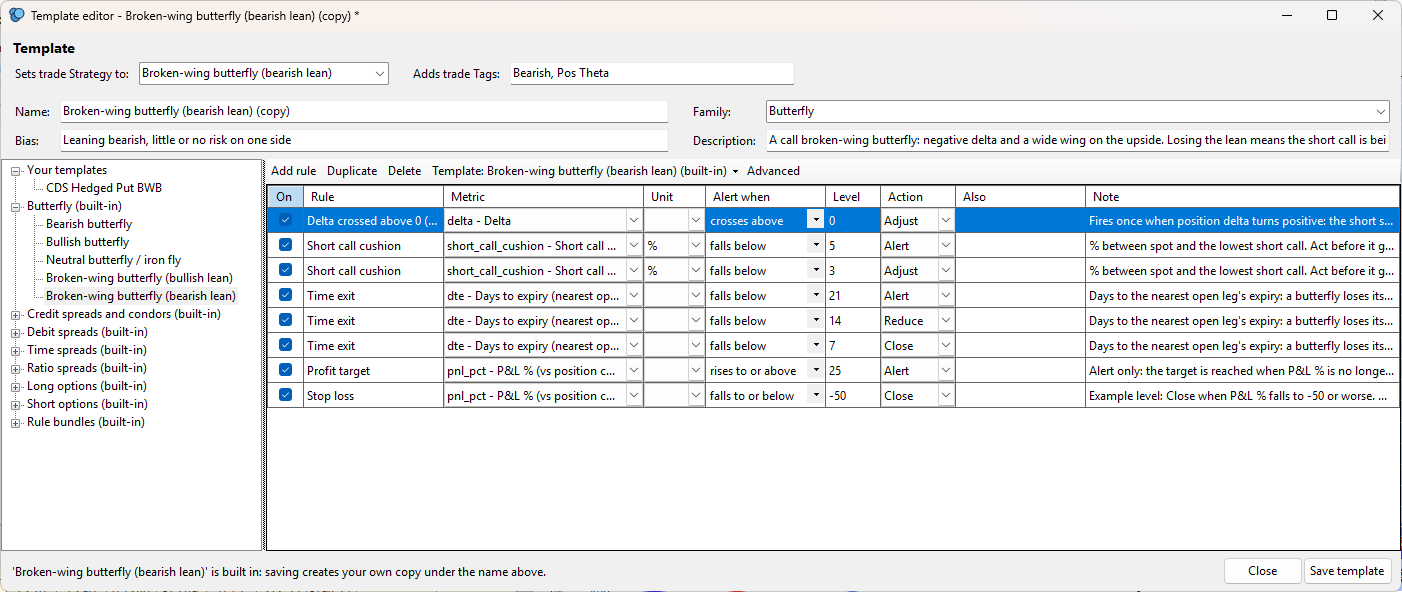
The Template editor is the same window as the rules editor, switched into a third mode. The rules editor has three modes, chosen by how you open it: a trade (from the Trade List or an Options Analysis window), an account (from the dashboard), or a template (from the template routes above). Only the template mode shows the template’s own fields, in a panel under the header: Name, Family, Bias and Description (plus the Strategy and Tags boxes that every mode has). In the other two modes that panel is not there. The title bar says Template editor, the save button reads Save template, and there is no Now column because no trade is being evaluated.
Applying a template is always a copy: editing or deleting a template later never changes a trade that already used it.
Every rule copied from a template remembers which one it came from. Three ways to undo, none of which asks for confirmation:
| Built-in template | What it contains |
|---|---|
| Time exit (DTE ladder) | DTE ≥ 21 Alert · 14 Reduce · 7 Close |
| Risk metrics (RegT) | Margin ÷ Capital ≤ 0.5 Alert, 0.7 Reduce (keep under 50 %, never beyond 70 %); Capital ÷ |Vega| ≥ 150 Alert, 100 Reduce. Set Planned Capital first |
| Positioning (example) | Short put and call cushions (5 % Alert, 3 % Adjust); short puts above ATM; short-strike delta (20 Alert, 30 Adjust); breakeven cushion |
| Profit target and stop (example) | P&L % below 25 fires an Alert (a target reached); P&L % at −50 or worse recommends Close |
Profit target and stop loss use P&L %. For a trade you monitor (status 1) it is calculated from the trade log (current P&L over the position cost, or over the trade’s Planned Capital when you set one — the same figure the Options Analysis window shows), so no window needs to be open. It reads n/a (never “ok”) while a leg has no price or when the trade holds a stock or futures leg.
Templates starts with your trade’s kind of strategy. The menu groups ready-made templates by family (Butterfly, Credit spreads and condors, Debit spreads, Time spreads, Ratio spreads, Long options, Short options). Applying one adds its rules and labels the trade: its Strategy is filled in if you have not set one (a strategy you chose is never replaced) and its Tags are added to yours (nothing of yours is removed). Applied to a leg group, only the rules are added.
Template editor. Create, edit and delete your own templates in the Template editor: open it from Templates… on the dashboard toolbar or Edit templates… at the bottom of the Templates menu. It is the same rules grid as the trade editor, with the template’s Name, Description, Family (the submenu it appears under), Bias, and the Strategy and Tags it gives a trade. The Template: button switches between templates, starts a new one or deletes the open one. A built-in template opens as a copy (“… (copy)”): saving creates your own template and the built-in one is never changed.
| Template | Character | Key rules (all levels are examples) |
|---|---|---|
| Bearish butterfly | Non-directional, leaning bearish | Delta crosses above 0 → Adjust (it has lost its bearish lean); time exit; breakeven cushion; profit target; stop |
| Bullish butterfly | Non-directional, leaning bullish | Delta crosses below 0 → Adjust; the same supporting rules |
| Neutral butterfly / iron fly | Non-directional | Time exit; breakeven cushion; profit target; stop |
| Broken-wing butterfly (bullish lean) | Leaning bullish | Delta crosses below 0; short put cushion; time exit; target; stop |
| Broken-wing butterfly (bearish lean) | Leaning bearish | Delta crosses above 0; short call cushion; time exit; target; stop |
| Iron condor | Non-directional, short premium | Short put and call cushions; short-strike delta; breakeven cushion; time exit 21/14 Roll/7; target 50 %; stop −100 % |
| Put credit spread / Call credit spread | Bullish / bearish, short premium | The tested side’s cushion; short-strike delta; time exit; target; stop |
| Call debit spread / Put debit spread | Bullish / bearish, defined risk, long premium | Delta crosses below 0 (call) or above 0 (put) → the lean is gone; time exit 21/10/5; target 50 %; stop −50 % |
| Calendar / diagonal | Non-directional, long vega | Shorter time ladder on the NEAREST leg (7 Alert, 3 Roll, 1 Close); target; stop |
| Put ratio spread | Bullish with a downside tail | Short put cushion (3 levels); margin to Planned Capital; time exit; target; stop |
| Call ratio spread | Bearish to neutral with an upside tail | Short call cushion (3 levels, measured to the lowest short call); margin to Planned Capital; time exit; target; stop |
| Long call / long put | Directional, long premium | Time exit 21/10/5; profit target 100 %; stop −50 % |
| Short strangle | Non-directional, undefined risk | Both cushions; short-strike delta; margin to Planned Capital; time exit; target; stop |
| Cash-secured put / Covered call | Income | Cushion to the short strike; short-strike delta; time exit; target |
Every strategy template lives in the same list as your own: change the levels on the trade, or save your version with More → New template from these rules… (it keeps the trade’s Strategy and Tags too).
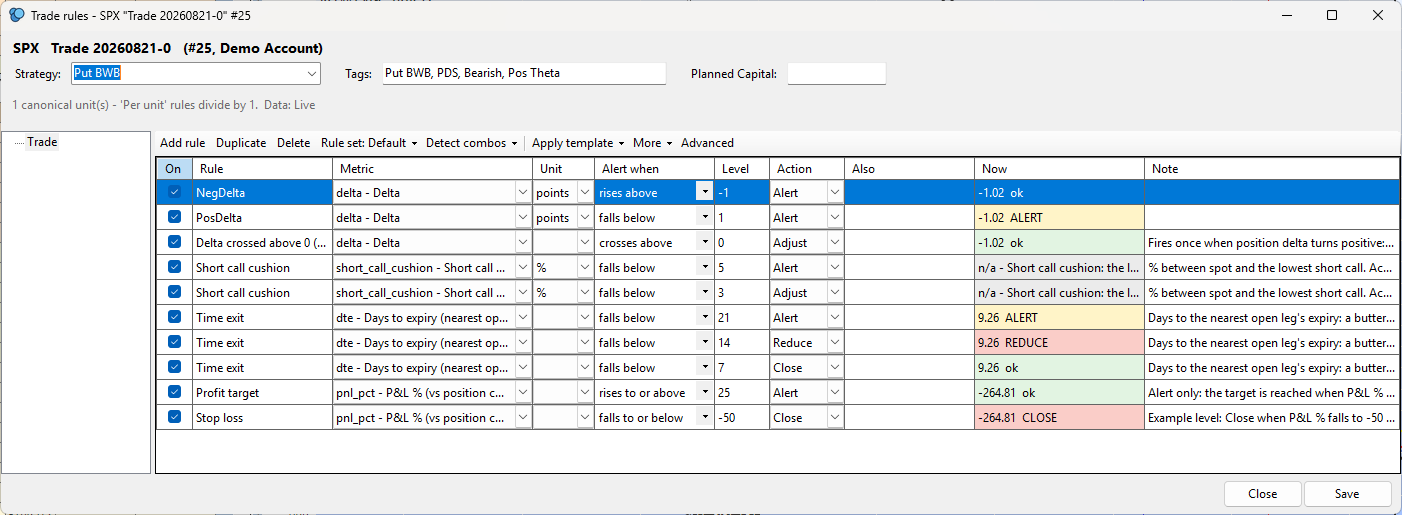
The rules editor opens in a simple view: On · Rule · Metric · Unit · Fires when · Level · Action · Also · Now · Note. A rule reads like a sentence: Delta · crosses above · 0 → Adjust, or Days to expiry · falls below · 21 → Alert. The Fires when choices are falls below, rises above, falls to or below, rises to or above (the rule is on while the condition is true) and crosses above, crosses below, crosses either way (once, then flagged until re-armed). They replace the old “Must be” column, which read backwards from “alert when”.
A rule that uses a setting the simple view hides (divided by another metric, absolute value, per unit, re-arm, hysteresis) says so in the Other settings column, so nothing is hidden silently. Press Advanced in the toolbar for every setting (the old columns); both views edit the same rule. More holds Leg groups…, Rule sets and New template from these rules….
On the dashboard the trade list shows the trade, its status, DTE, the counts and the worst open rule in one line (“Time exit: REDUCE − 10 (needs ≥ 14)”, or “Delta lean: ADJUST − crossed above 0, now 3”). Details adds the account, acknowledged count, data quality and evaluation time.
The editor’s Templates ▸ Suggested for this trade button looks at the trade’s open legs and says what they form: a butterfly, an iron condor, a credit spread, a strangle, a calendar … It lists suggestions and does nothing until you click one. Whole position applies the matching template to the trade. When the trade log shows the legs were bought at different times (within a few seconds = one combo), each part is offered as its own leg group with its own template — useful for a butterfly plus a hedge. Legs already in a group are left alone. A shape SOAP2 recognises but has no template for (a straddle, say) is named and can still be grouped; anything it is not sure of is not guessed. Groups made this way show their template in brackets in the tree. Besides the single-expiry shapes it recognises a double diagonal (a put diagonal and a call diagonal on the same two expiries: short the near leg, long the far leg, all of one size) and a double calendar (the same with equal strikes); both use the Calendar / diagonal template. For a double diagonal Suggested for this trade also offers Group as a Put diagonal and a Call diagonal: two groups, one per side, each with the template’s rules (or make the split by hand in Leg groups… and apply a template to each group). For a butterfly (straight or broken-wing) it offers Group as a credit spread and a debit spread: two groups that share the body, each with the template of its shape (Put credit spread, Put debit spread, …), in one undoable step. When every open leg is already in a group it says so.
Say one trade holds a put broken-wing butterfly and a double diagonal. Each combo gets its own leg group and its own template, one at a time:
Everything is a draft until you press Save. Undo (toolbar button or Ctrl+Z) walks back through every change you made since the last save, newest first, one at a time: a rule edited, added, duplicated or deleted; a template applied, switched or removed; groups created, split or edited; Strategy, Tags, Planned Capital; a rule set created or switched; a validation; duplicates removed. Going all the way back returns the editor to what is saved (the “unsaved changes” mark disappears). Pressing Save (or reloading the rules from disk) ends the history: what is saved cannot be undone from the editor. In a cell or text box Ctrl+Z still undoes the typing, as usual. Templates → Undo is the same command.
Check rules reads the trade’s own rules together with those of every leg group and lists what looks wrong. It never changes anything by itself.
| Finding | Meaning | What you can do |
|---|---|---|
| Repeats an earlier rule | A rule says exactly what an earlier one in the same profile already says (same measurement, same levels and actions) | Click it to remove it, or Remove all N removable rules. One undoable step. Only enabled rules count; a disabled copy is left alone |
| Can never apply | The rule measures something this position does not have (a short call cushion on a put-only trade, a breakeven of a calendar...): it would read n/a forever | Click it to remove it (also part of Remove all) |
| No value keeps both OK | Two rules on the same measurement point in opposite directions with no room between them, so one always fires (for example delta rises above -1 and delta falls below 1: usually one direction written backwards) | Click to jump there and fix the direction or the level |
| P&L % of a tiny cost | A rule uses P&L % of cost on a position that cost very little against what it can lose (a broken-wing butterfly for a few cents): small moves read as huge percentages | Use P&L % of max loss instead, or set a Planned Capital |
| Two actions at one level | The same measurement at the same level asks for, say, both Alert and Close | Click to jump to the profile and pick one |
| Ladder back to front | The level that breaches first carries a harsher action than one that breaches later (for example DTE below 21 = Close but below 7 = Alert) | Click to jump there and reorder the actions |
| Repeats a trade-level rule | A group rule is the same as a rule on the trade itself, so one breach fires both | Decide whether you meant it; delete one if not |
| Leg in several groups | Its risk would be counted twice | Fix it in Leg groups… |
| Group leg no longer open / open legs in no group / group without rules | The grouping no longer matches the position, or a combo has no rules yet | Review the group, group the remaining legs, or apply a template to it |
The rules of a hybrid trade live on its groups, so the Trade node can be empty while the dashboard lists real rules. To see everything in one place, select
All rules (combined) under Trade in the tree. It lists the trade’s rules and every group’s together, each row marked [Trade] or [Group name],
with their current values. It is read-only: edit a rule on its own group (Add rule there adds to the Trade node). When a trade has no rules of its own but its groups do, the editor opens on this view.
If only one group has rules, those are simply the trade’s rules.
Check rules ▸ Mark this combination as validated (the last item of the Check rules menu) is your sign-off on the combination. With findings it lists them and asks whether to validate anyway (an overlap, for instance, can be intentional). The button then shows a green tick, and Save keeps it. Any later change to a rule’s substance or to the groups (a level, an action, enabling or disabling, a leg) cancels the validation and the tick goes; renaming a rule or editing its note does not. Validation is advice, not a gate: the dashboard monitors and alerts on the rules whether or not they are validated. (The dashboard does not show the validated state yet.) The button’s caption also counts the findings: Check rules (3).
The toolbar, left to right: Add rule, Duplicate, Delete, Undo, Check rules, Templates (with Suggested for this trade at the top), then More (Leg groups…, Rule sets, New template from these rules…) and Advanced. The Rule set button appears once a trade has a second rule set. Keys: Ins or Ctrl+N adds a rule (measuring what the selected rule measures), Del deletes the selected rules, Ctrl+S saves, Ctrl+Z undoes.
The When column turns a rule into a crossover: Crosses above, Crosses below or Crosses either way. A crossover fires once, the first time the value passes the level, and then stays flagged however often the value hovers back and forth over it. It needs one earlier reading on the other side, so it never fires right at start-up. To let it fire again, select it on the dashboard and press Re-arm (or choose Daily in the Re-arm column and a new UTC day re-arms it). For a crossover, Must be and Hyst % are not used. Threshold rules also have an absolute re-arm band in the model (for levels at 0, where a percentage band is zero).
The numbers in the example templates are only starting points — set your own. To keep your own set, use More → New template from these rules… in the rules editor (the Template editor opens with them: name it, pick a category, Save template), or build it from scratch in the Template editor (see How templates work, step by step above); it then appears in Templates for every trade. Built-in names cannot be overwritten.
Categories. When you save a template (in the Template editor, or with a quick save from a right-click on a profile in the tree on the left) you can also give it a category: pick one already in use or type a new one. The Templates menu then lists it in a submenu of that name (next to the built-in ones if you reuse a built-in category such as Butterfly); templates without a category stay in the flat list. The Template editor’s left pane and its template menu group Your templates by category too. Saving a template under an existing name keeps its category unless you choose another; to change one later, open the template in the Template editor and edit its Family box.
For accounts, a template saved under the exact name Default account rules is pre-filled into the rules of any account that has none yet, the first time you open its editor (nothing is stored until you press Save). Accounts that already have rules are never touched.
? name, evaluates to n/a, and is kept exactly as it is.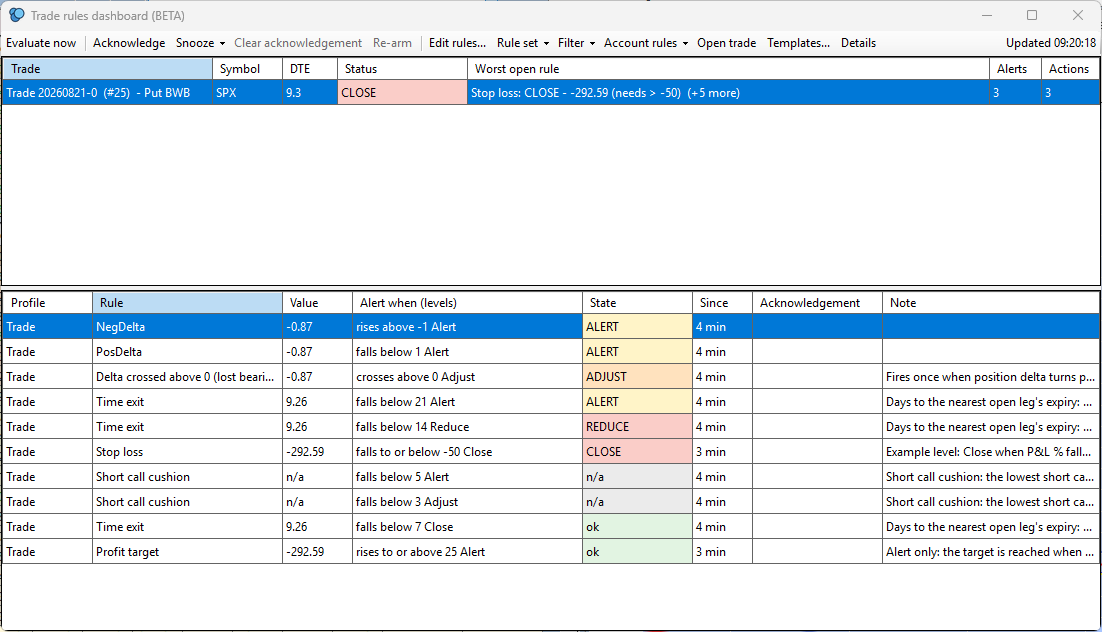
Trades → Trade rules dashboard lists every monitored trade that has rules. The top grid has one row per trade, most worrying first:
| Column | Meaning |
|---|---|
| Status | The most severe open (unacknowledged) breach, coloured: yellow Alert, orange Adjust/Roll, red Reduce/Close. “ok” when nothing is breached; “ok (acknowledged)” when all breaches are acknowledged; “n/a” when nothing could be evaluated |
| Alerts / Actions / Ack'd | How many open Alerts, how many open calls for action, and how many acknowledged breaches |
| DTE | Days to the nearest open leg's expiry |
| Data | How the numbers were obtained (see below) |
Select a trade to see its rules underneath: the current value, the levels (Must be), the state, how long ago it entered that state, any acknowledgement, and your note. The toolbar:
Acknowledgements and snoozes are kept across restarts (for up to 60 days): after a restart a breach you had acknowledged is still acknowledged, and a 24-hour snooze keeps counting. They still end by themselves the moment the rule’s state changes (a worse level, recovery, going stale), and a snooze that ran out while SOAP2 was closed is not restored.
A rule that cannot honestly be evaluated is never shown as “ok”. SOAP2 records how each trade's figures were obtained:
| Data | Meaning | What rules do |
|---|---|---|
| Live | Read from the trade's own Options Analysis window | Normal |
| Estimate | No suitable Options Analysis window: Greeks and margin are an approximation (flat-volatility Black-Scholes, RegT-style) | Normal, marked as an estimate |
| Degraded | An estimate that rests on a guess: a leg with no price or no volatility, or an unusable underlying price | Price-based rules can raise at most an Alert (shown “alert only”); they never recommend Reduce/Close on a guess. Time rules are unaffected |
| Stale | TWS is disconnected; these are the last known figures | Price-based rules read stale (“I no longer know”); time rules still work |
| Missing | No open position could be found for the trade | All rules read n/a |
A n/a also appears when a metric has no value (for example P&L % while a leg has no price, or on a trade holding a stock or futures leg), when a ratio's denominator is zero, when a sigma distance has no IV, or when the rule uses something this version does not know. The reason is shown in the Now / Note column.
Under your SOAP2 data folder (normally %AppData%\SOAP2):
| Folder / file | Holds |
|---|---|
Rules\Trades\{account}_{trade number}.json | One file per trade: its rules, its Planned Capital and any leg groups. Readable and editable by hand |
Rules\Templates\{name}.json | Your own templates |
Results\{Symbol}\rules_{account}_t{trade number}.json | The last known state of the trade's rules (every rule's value, state and acknowledgement), refreshed every minute while the data is good |
SOAP2 is careful with these files: a file it cannot read is copied aside and never overwritten; a file that belongs to a different symbol than the trade now holding that number is moved aside (your old rules are kept); and anything a newer SOAP2 wrote that this version does not understand is preserved when you save. If you rename a trade its rules stay with it.
margin metric is SOAP2's worst-case at expiry, not your broker's requirement.I saved a rule but nothing appeared in the Message Log. The Message Log only records changes. A rule that is already fine says nothing; one that is already breached when you save is logged once. Open the dashboard to see every rule's current state.
A rule says n/a. Read the Note: it says exactly what is missing (no price, no IV, zero denominator, unknown metric...).
The dashboard is empty. No monitored trade has an enabled rule yet, or the trades you gave rules are Unmonitored and not loaded in an Options Analysis window.
The Rules label is not in my Options Analysis window. It is hidden for the Model Trade; select a real trade.
Can a rule place an order for me? No. Rules only notify and recommend.
Can the AI assistant see my rules? A read-only call for the assistant is planned; the stored state file above is what it will read.