# Handling Trades in SOAP
▶ Video Understanding trade status (0:49) · all videos
## Overview
The Trade List is a powerful feature in SOAP that allows you to view and manage your trades directly within the application.
It provides a comprehensive overview of your trading activity: active trades and archived trades.
A third, exceptional category — **orphaned trades** — can appear for a couple of different reasons: a trade entry whose log file has gone missing (SOAP keeps the entry rather than silently discarding it, so nothing is lost — restorable via the Restore button if the file reappears), or a log file found on disk with no matching trade entry at all (e.g. left behind by a partial import).
This should never happen in normal operation; if you see one, it indicates the trade record was lost or desynced from its log file, and the Orphaned view exists to let you recover it rather than lose the executions. One specific case resolves itself automatically: a genuinely empty trade (created via **New Empty Trade** below but never actually used) briefly shows here too, and is simply removed — not kept as an Orphaned entry — the next time SOAP restarts, since there was never any execution data to preserve.
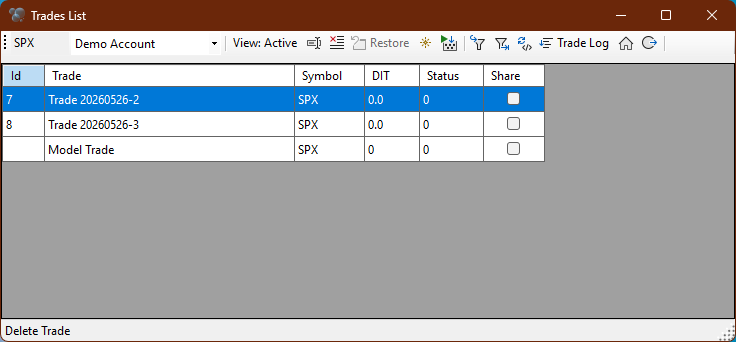
To simplify trade management, the Trade List is organised per symbol and account:
Example of Trade List:
---
## Grid Columns
| Column | Meaning |
|---|---|
| Account | IB account the trade belongs to (hidden if only one account is configured). |
| Id | Internal trade number. |
| Trade | Trade name. Double-click to rename (Active view only; the Model Trade and New Blank Trade entries can't be renamed). |
| Symbol | Underlying symbol. |
| DIT | Days In Trade, computed from the trade log's earliest execution. |
| DTE | Days To Expiration of the nearest leg. |
| Status | `1` = Monitored, `0` = Unmonitored, `-1` = Archived, `-2` = Orphaned, `-3` = Expired (every *option* leg is past its expiry but the trade hasn't settled flat yet — a trade holding only an underlying/stock position, with no option legs at all, is never marked Expired, since a plain stock position has no expiry to speak of). In Active view, click the dropdown (or select a row and press `0`/`1`) to toggle Monitored/Unmonitored — this subscribes/cancels live IB market data for the trade's legs. `-1`, `-2`, and `-3` are lifecycle transitions SOAP manages itself and can't be set directly. |
| Default / Share | Per-trade flags (Default column is hidden by default). |
NB: The Share feature is not wired to any code yet.
Status lifecycle, at a glance:
- Active (`0`/`1`) ⇄ Archived (`-1`) — manual, via the Delete/Restore buttons.
- Active (`0`/`1`) ⇄ Orphaned (`-2`) — automatic only: SOAP detects/rehabilitates these itself, restorable via the Restore button when the log file is found; should normally never occur. Exception: a never-used empty trade (see **New Empty Trade** below) also passes through Orphaned briefly, but is removed outright rather than kept, since it never had any execution data.
- Active (`0`/`1`) ⇄ Expired (`-3`) — automatic only, on every TLog reload: a trade moves to Expired the moment all of its legs are past expiration, and reverts to Active if a new/rolled leg makes it current again. An Expired trade is still shown in the Active view (still Monitored, so it keeps retrying its settlement price) but its Status cell is read-only, and it drops out of trade pickers elsewhere (e.g. Commit's trade combo box) since it can no longer be worked with — its expiry has already been pruned from the chain. Once it nets flat, it auto-archives like any other trade, moving to `-1`.
---
## Understanding Orphaned Trades (quick guide)
Seeing something in the Orphaned view is unusual enough to be worth a closer look — it's always one of exactly three situations, each needing a different response:
| What you'll see | What actually happened | What to do |
|---|---|---|
| A trade with a Symbol and real DIT/DTE values | It loaded fine in a past session — SOAP found real execution history for it — and its log file has since gone missing from the active Trades folder. | Check the account's `Orphaned` subfolder: if the file is sitting there, click **Restore**. If it isn't, the data is unfortunately not recoverable from within SOAP — nothing to click, the entry just documents that this trade's history existed and is now gone rather than silently vanishing. |
| A trade with no Symbol, DIT `0`, DTE `0` | An abandoned **New Empty Trade** — created, then never actually used for anything. | Nothing to do — SOAP removes these on its own the next time it restarts, since there was never any execution data to lose. If you still see it after a restart, something's off; treat it like the row above. |
| A trade you don't recognize, that appeared on its own | A log file was found on disk with no matching entry in the Trade List at all — most often a leftover from an interrupted or partial import. | Open it (double-click, once restored via **Restore** if needed) and check whether its executions are real/wanted. If not, use **Cleanup** (below) to remove it permanently. |
In short: **Restore** brings back a trade whose file is still findable in the `Orphaned` subfolder; a truly abandoned or unrecoverable entry is best cleared with **Cleanup**; and a never-used blank trade needs no action at all.
---
## Toolstrip Features
### Symbol / Account
The symbol box mirrors the current Options Analysis symbol; the Account dropdown selects which account's trades are listed. Changing either repopulates the grid.
### View Button
Clicking **View** cycles the grid through three modes:
- **Active**: trades with Status `0` or `1` for the selected account — this is the normal working view.
- **Archived**: trades that were deleted (archived) or expired, listed by scanning the `Archived Trades` folder, filtered to the current symbol. Rows can't be edited directly, but a selected trade can be brought back to Active with the Restore button.
- **Orphaned**: trades with Status `-2`, filtered to the current symbol. This view should normally be empty — see the note on orphaned trades above.
### Delete Button (Active view)
Deletes the selected trade **from the active list** after a confirmation prompt. This is not a permanent erase: the trade's log file is moved into `Archived Trades`, IB market data subscriptions for its legs are cancelled, and any open Options Analysis window showing the trade is cleared. Archived trades remain visible (read-only) in the Archived view and can be brought back with the Restore button (see below), so use this with care but not as a one-way trip.
### Cleanup Button (Archived / Orphaned views only)
Unlike Delete above, this **permanently** removes trades that are already in the Archived or Orphaned view — their log file and list entry are deleted outright, with no Restore path back. A confirmation dialog lists every trade about to go before anything is deleted. Only enabled while viewing Archived or Orphaned, and only these two views allow selecting multiple rows at once (Ctrl/Shift-click, or the `Delete` key as a shortcut for the same action) so a batch of stale entries can be cleared in one pass instead of one at a time.
After confirming, a second, separate question appears: **also permanently delete every saved Snapshot/Final Report for these trades?** These are the report files described in the [Trade Reporting & Saved Reports](./trade_reporting_user_guide.md.html) guide. Choosing **No** (the default) leaves them on disk — harmless, just no longer reachable from Trade Reporting once the trade itself is gone. Choosing **Yes** removes them along with the trade. This question is independent of the main confirmation above — declining it never cancels the trade deletion itself.
### Copy / Move to Another Account
Right-clicking a trade row (Active view) offers **Copy to {account}** and **Move to {account}** for every other configured account: Copy leaves the original untouched and creates an independent trade under the target account; Move does the same, then archives the source trade (recoverable via the Archived view, not a hard delete). See [Model & Trade Import/Export](./model_trade_importexport_user_guide.md.html#copy-move-account) for full details.
### Restore Button
Enabled in both the **Orphaned** and **Archived** views. Switch to the Active view afterwards to see the restored trade.
- **Orphaned view**: moves the selected trade's log file back from the Orphaned subfolder into the active Trades folder, re-links it to its trade entry, and reloads its execution log.
- **Archived view**: moves the log file back from the `Archived Trades` folder, re-adds the trade to the active list with Status `0` (Unmonitored), and reloads its execution log — after which it shows up in the trade combo box on any open Options Analysis window for that symbol, and can be used in [Rewind](./rewind_user_guide.md.html) mode like any other active trade.
Note: restoring is a real, saved state change — it's written to `TradeList.csv` immediately, not just held for the session. But if the trade's legs are actually past expiration (the usual reason a trade was archived in the first place), it will be **automatically re-archived the next time SOAP starts** — every startup re-validates each active trade's expiry against the real current date, regardless of what date was being reviewed in Rewind. So an archived-and-expired trade you restore to review in Rewind is only available for **that session**; a trade archived while still genuinely unexpired stays active indefinitely, same as any other trade.
### New Empty Trade Button
Creates a blank, unmonitored trade entry (no executions yet) for the current symbol/account and puts its name into rename mode. Empty trades with no recorded trade log are automatically deleted when SOAP restarts.
### Execs Button
Opens the Execution Allocations form, which queries IB for execution details (quantity, price, time) and displays them in a table.
### Import / Export Buttons
**Export** writes the selected trade's metadata and execution log to a JSON file, so it can be shared or archived outside SOAP. The file carries no account information — it's fully portable. **Import** reads such a JSON file back in as a new trade (with an `_import` suffix on the name) under the account selected in the toolstrip dropdown, defaulting to **Demo Account** if none is selected.
See [Model & Trade Import/Export](./model_trade_importexport_user_guide.md.html) for full details, including the matching feature for saved models.
### Import from ONE
Trades executed in tastytrade's **ONE** platform can be brought in with the **Import ONE TLog Report** button: export the TLog as CSV from ONE's Reports view, then use this button to import it.
The older paste-content style ONE import is deprecated.
### Load List Button
Reloads the trade list for the selected account from disk, discarding any in-memory changes not yet saved.
### Trade Log Button
Opens the Trade Log window for the selected trade, showing its full execution history (time, symbol, quantity, price, etc.). Only works from the Active view — an Archived or Orphaned trade's log file isn't in the active folder this reads from, so restore the trade first.
### Quick Trade Report / Save Snapshot Now / Review Saved Reports (Trade Management dropdown)
Three related items in the **Trade Management** dropdown, next to each other:
- **Quick Trade Report** opens the full Trade Report window for the selected trade — a historical P&L/Margin chart, with its own **Save** button (which also captures a screenshot) if you want to save it.
- **Save Snapshot Now** does the save part only, without opening that window — one click saves a report for the selected trade right away (no screenshot, since there's no window open to capture).
- **Review Saved Reports...** opens Trade Reporting with the selected trade already found and selected (every filter there is reset so the trade is guaranteed to show up) and its Snapshot History tab open — the fastest way to see what's already been saved for a trade.
All three link into [Trade Reporting & Saved Reports](./trade_reporting_user_guide.md.html) for the full picture, including where saved reports show up and the difference between a **Snapshot** (something you save any time) and a **Final Report** (saved automatically, once, when a trade closes).
---
## Splitting a Trade into Sub-Trades
A trade with several legs added at different times — a roll, an adjustment, a scaled-in position — can be split into separate sub-trades directly from the **Trade Log window** (opened via the Trade Log button above, or an Options Analysis window's own TLOG button). The split status bar at the bottom of the window carries a permanent reminder of this.
**Right-click any row** in the Trade Log grid. What you see depends on which rows are ticked (the **Select** checkbox column):
- **Every row ticked** (the whole trade selected): the menu offers **Split into Sub-Trades by Execution Time...**, which groups every execution by its exact date/time and lists each group as a checkable entry right in the menu — timestamp, leg count, and a short summary of each leg. Tick any or all of the groups you want to split off, then click **Split**. The menu stays open while you tick multiple groups, so you can build up the whole set before committing.
- **Only some rows ticked**: the menu is limited to a single **Save Selected as Sub-Trade** action, creating one sub-trade from exactly those rows.
Each sub-trade created this way is named after the original trade with a `SubA`, `SubB`, ... suffix (the next unused letter, checked against every trade — active, archived, or still just a file on disk — so repeated splits of the same trade never collide), registered in the Trade List, and saved to its own execution log file, exactly like any other trade.
**The original trade is never touched.** Splitting only ever copies the selected execution(s) into a new trade; nothing is removed from the source trade's own log. Any Options Analysis window you have open stays on the trade it was already showing — it does not jump to the newly created sub-trade.
If every row shares the exact same execution time (nothing to meaningfully group), the split-by-time option reports that there's nothing to split rather than offering a single, pointless group.
---
See also: [Trade Reporting & Saved Reports](./trade_reporting_user_guide.md.html) — the dashboard view of all your trades, and everything about saving/browsing per-trade reports.
---
Go back to the main help page [SOAP2 Help Guide](index.md.html) or access help from the toolstrip.
Contact: [email protected]