▶ Video SOAP2 settings (0:31) · all videos
The **Settings & Windows** menu, accessible via the gear icon on the top toolstrip (see below), provides access to key configuration and customization options for SOAP2. This short guide explains each section and how to use the available settings.  ## Overview Clicking the **Settings** (wheel) icon opens a menu with several options for managing application preferences, symbol/ticker settings, and advanced features. These settings help tailor SOAP2 to your workflow and trading needs. 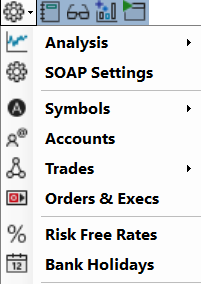 --- ## Settings Menu Sections ### 1. Options Analysis - **Purpose:** Manage and Options Analyses enviroments. - A list can be displayed or a specific OA selected This is also directly available from the top toolbar, or the bottom left list button ### 2. SOAP Settings Not enabled yet ### 3. Symbols (Ticker Settings) - **Purpose:** Manage and customize settings for each symbol/ticker. - **Options Include:** - Add or remove symbols from your environment (Symbol Setup) - Set ticker type (e.g., IND, STK) - Define trading class (main/weekly) - Set preferred strike intervals - The **Alt Underlying** field is a locked dropdown of known Watchlist symbols (no free text), to avoid picking an invalid entry - The default **OTM strike gap** (used for Vertical Skew) is pre-filled based on the symbol's own strike interval, so it makes sense for both high- and low-priced underlyings - Enable/disable weekly expirations and select trading days - **Tip:** Adjust symbol settings to match your trading style and the products you follow. The Watchlist is set up and managed under this item - **Purpose:** Configure your default watchlist (only one at this stage). - **Options Include:** - Add, remove, or reorder tickers in your watchlist - Save and load watchlist profiles - **Tip:** Keep your most-used tickers at the top for quick access. - **Removing a symbol:** press **Delete** on a row (Watchlist grid or search results) to remove it — this also closes any open OA windows for that symbol; a confirmation prompt is shown first. A small set of default symbols cannot be removed this way. - **Note:** adding a symbol now saves the Watchlist automatically — no separate manual Save step is needed. ### 4. Accounts - **Purpose:** Manage trading accounts. - **Options Include:** - Add new accounts (a Demo Account is always available) - Edit or remove existing accounts - Set default account for new trades - **Tip:** Use the Demo Account for safe experimentation. ### 5. Trade List - The trade list is specific to the selected account. ### 6. Rates - **Purpose:** Update and store risk free rates. - **Display:** - Short term and longer term rates can be plotted --- ## How to Use the Settings Menu 1. **Open the Settings & Windows Menu:** Click the gear icon in the top toolstrip. 2. **Select a Section:** Choose the relevant menu item (General, Symbols, Watchlist, Accounts, etc.). 3. **Adjust Settings:** Use the provided forms and controls to make changes. 4. **Save Changes:** Most settings are applied immediately, but some may require confirmation or a restart. --- ## Tips - **Hover for Tooltips:** Most settings fields provide tooltips for additional guidance. - **Restore Defaults:** If needed, you can reset settings to their default values. - **Backup Configurations:** Regularly back up your settings and watchlists for easy recovery. --- Go back to the main help page [SOAP2 Help Guide](index.md.html).