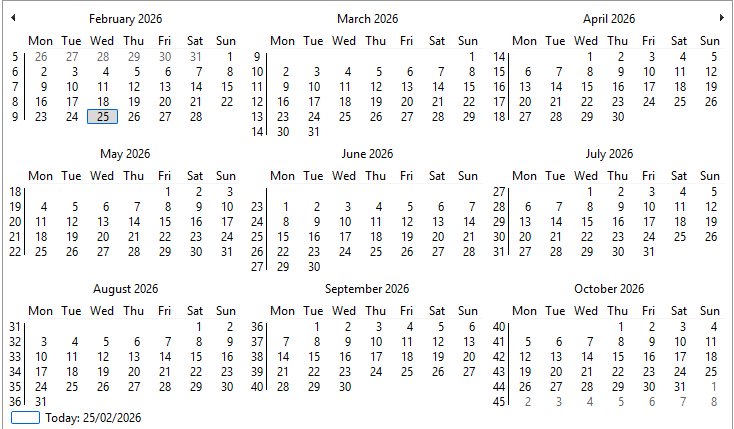
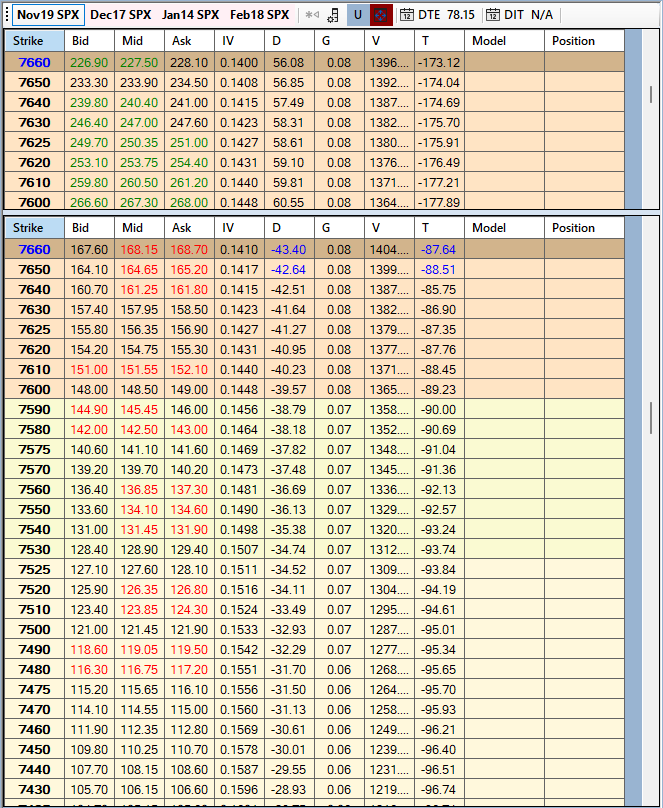
Note: An expiry must first be selected in the Main Calendar for the tabs to be populated.
Note: Regular monthly expiries are displayed in bold on the Calendar. It corresponds to the last trading day for the chain (IB convention). If a monthly class is selected, the other 3 expiry tabs will automatically switch to the same trading class, but with the next 3 available expiries. Therefore, if a weekly class is selected, the other 3 expiry tabs will switch to the next 3 available weeklies. ### Manual Trading Class Selection - Switch between monthly (`M`), weekly (`W`), AM settlement (`A`), PM settlement (`P`) classes if unresolved by SOAP (seldom). ### Panel Controls (**Expand/Collapse**) - `Alt-Down`: Expand top panel (strike interval selection + extra information). - `Alt-Up`: Hide top panel. Both shortcuts actually toggle the visibility of the top panel. Note: Ctrl-M toggles the minimum strike interval, which is enabled by default for short dated trading (0DTE or 1DTE). When enabled, the minimum strike interval is applied to the displayed strikes in the data grids below. This allows you to focus on the most relevant strikes for short dated trading.  The Top Panel provides quick access to strike interval controls and trading class selection, allowing you to customize the displayed strikes and expiries without navigating away from the main options chain view. In this instance, considering SPX is not a tradable symbol, the OA assumes SPX is the de facto underlying for mixed combos.More than one Strike Interval can be combined.
--- ## Models Models are entered in the MODEL column of the data grids. No other columns are editable in the grids. When a model is entered, the OA will attempt to match the model to the corresponding strike and expiry based on the row and tab it is entered in. The charting then kicks in and displays the risk graph for the selected model and expiry. Models can be saved to a trade and recalled later. This allows you to quickly switch between different sets of models for the same expiry or different expiries, and apply them to any new trade. When a model is saved to a trade, it is associated with the selected expiry and strike, so when you recall the trade, the OA will attempt to match the models to the corresponding strikes and expiries in the data grids. The saved model can however be removed after conversion to a trade, so it is not necessarily a one-to-one relationship between saved models and the models displayed in the data grids. The Models list is available with `Ctrl-M` or by pressing the Models button above grids. It shows all the models currently saved in the OA, regardless of whether they are currently displayed in the data grids or not. Once a model is loaded into the data grids, individual legs can be moved to different strikes within the same expiry by left-clicking and dragging the model to the desired strike. It is also possible to move the whole combo up or down. - Left-click + drag: Move a single model leg from one strike to another. - Ctrl + Left-click + drag: Move ALL models in the current expiry by the strike delta (bulk model shift). This allows you to quickly adjust the strikes of your models without having to re-enter them manually, and it can be especially useful for adjusting the strikes of short dated options where the strike intervals are tighter. It is also possible to transfer model legs (individually or combo) between expiry tabs using the Ctrl + Shift + (T/A/B/Z) shortcuts, but the process may look less intuitive (read below). This allows you to quickly move models between different expiries without having to re-enter them manually, and it can be especially useful for adjusting the expiries of your models based on market conditions or trading strategies. However, it is important to note that the transfer shortcuts only work between the current expiry tab and the previous expiry tab (CurrentTab − 1), so you need to switch to the target expiry tab first before using the shortcuts. This means that this feature requires being on the target expiry tab before initiating the transfer from the previous tab on the left., which can look less intuitive at first but allows for quick transfers once you get used to it. --- TransferLegFromPreviousTab() — Ctrl+Shift+T Workflow: 1. User switches to the target expiry tab (e.g. tab 2) 2. User clicks the exact row (strike + side) in the Call or Put grid where they want the leg placed 3. Presses Ctrl+Shift+T TransferAllLegsFromPreviousTab() — Ctrl+Shift+A Workflow: 1. User switches to the target expiry tab 2. Presses Ctrl+Shift+A Return legs to origin expiry Shortcut Action Ctrl+Shift+B Return the selected row's leg to the previous expiry tab Ctrl+Shift+Z Return all legs on the current tab to the previous expiry tab --- --- ## Mouse Interactions Reference This section documents what hovering and clicking does across the Call/Put grids, for quick reference. ### Hover | Where | Shows | |---|---| | BID / ASK / MID / IV cell | Tooltip with the last update time (UTC) for that tick; MID also shows the mid-price source | | STRIKE cell | Tooltip with ConId, ReqId, last price-update time + Active/Inactive status, and the row's Visible flag | ### Click | Where | Button | Does | |---|---|---| | STRIKE cell | Left | If Verbose mode is on, prints ConId/ReqId/strike/visibility + live bid-ask to the quick-info bar | | MODEL cell (non-zero) | Left, drag | Moves that single model leg to another strike | | MODEL cell (non-zero), Ctrl held | Left, drag | Shifts **all** models in the current expiry by the strike delta | | MODEL cell (empty/zero) | Right | Opens the "Save Current Model" menu | | POSITION column header | Right | Prompts to set models that close all open position legs (including legs on other expiry tabs) | | Delta/Gamma/Vega/Theta/Vanna/Vomma column header | Right | Opens the floating Greeks menu in **swap mode**: pick a different Greek and it replaces the one shown in that column, in place — unlike the toolbar toggle, this never adds/removes a column or widens the grid | | Plot checkbox (Summary grid) | Left | Toggles that row's chart series (Position/Model) on the risk graph | | STRIKE cell — **Rewind mode only** | Double | Requests/backfills history for that strike and shows the nearest historical bar in the quick-info bar | Note: Charm and Color are placeholder columns only — there's no Black-Scholes formula wired up for either yet, so they're never computed and can't be picked as a swap target. ### The "Greeks Columns" floating menu The toolbar button labeled **Greeks Columns** (on the risk-graph toolstrip) opens a small floating panel, draggable by its header bar, with a "Hide" button at the bottom: - **Toolbar button** → visibility-toggle mode: check/uncheck any column to show/hide it (widens or narrows the grids). - **Right-click a Greek column header** → swap mode: the same panel, but picking a Greek swaps it into the column you right-clicked instead of changing which columns are visible. Non-visible Greek columns are *not* free — Delta/Gamma/Vega/Theta are always computed every refresh regardless of visibility (only the display is skipped when hidden), but Vanna/Vomma are only computed when their column is visible. --- ## Troubleshooting - If the grids are not populating after selecting an expiry, try refreshing the chain descriptors with `Ctrl-D` or selecting a different expiry and then reselecting the original expiry. - There is a Troubleshooting section on the main page top menu. - Loading the initial chain definitions for an expiry can take a moment, especially for the first selection. If the grids are still not populating after waiting a moment, try refreshing the chain descriptors with `Ctrl-D` or selecting a different expiry and then reselecting the original expiry. Note: chains always load a lot faster on subsequent selections due to caching, but it can still depend on the amount of data and the speed of the connection to IB. ## Contact and Support Go back to the main help page [SOAP2 Help Guide](index.md.html). Contact: [email protected]